
All guides
QMK, ZMK and RMK: know your firmware
How the three open-source firmwares differ, and how to tell which one your keyboard runs.
Last updated 2026-10-15
Firmware is the program running on your keyboard's controller: it scans every key and turns presses into signals your computer understands. How you remap depends on the firmware, so the first step is finding out which one you have.
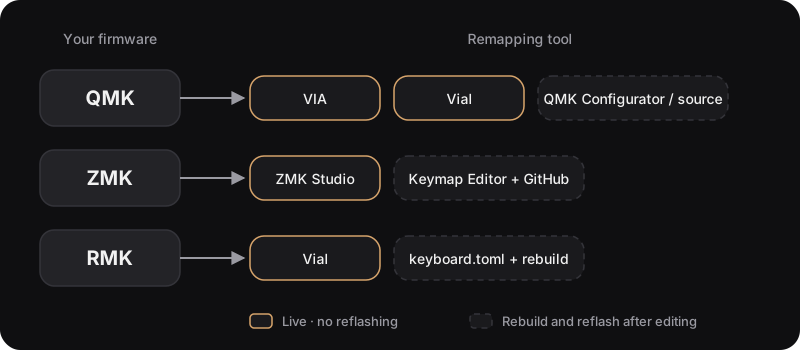
At a glance
| QMK | ZMK | RMK | |
|---|---|---|---|
| Best for | Wired keyboards | Wireless / Bluetooth | Wired and wireless |
| Written in | C | C (on Zephyr) | Rust |
| Live remapping | VIA, Vial | ZMK Studio | Vial |
| Default keymap | QMK Configurator, source | Edit .keymap, GitHub builds it | Edit keyboard.toml, rebuild |
| Common controllers | ATmega32U4, RP2040, STM32 | nRF52840 (e.g. nice!nano) | nRF52840, RP2040, STM32, ESP32 |
| Split terms | master / slave | central / peripheral | central / peripheral |
- QMK — the oldest and most feature-rich; the usual choice for wired custom keyboards.
- ZMK — built for low-power wireless; most Bluetooth split keyboards use it.
- RMK — a newer Rust firmware for both wired and wireless boards, remapped live with Vial.
Which firmware is yours?
- Check the product page or manual — it usually says.
- Is it wireless? A Bluetooth, battery-powered split board is most likely ZMK or RMK.
- Try the tools:
- Open usevia.app in Chrome; if it connects → QMK with VIA.
- Open the Vial app or vial.rocks; if it connects → Vial (QMK or RMK).
- Open zmk.studio; if it connects → ZMK with Studio enabled.
- If none work, ask the keyboard's maker — don't flash random firmware to find out.
Next steps
- Layers, tap vs hold and other shared ideas → Layers, keycodes and behaviors
- Your keyboard is split → Single vs split keyboards
- Start remapping → Remapping overview