
All guides
Remapping overview
Pick the right remapping tool for your firmware in three minutes.
Last updated 2026-10-15
There are two ways to remap:
- Live remapping — tools like VIA, Vial and ZMK Studio apply changes instantly, no flashing needed. Best for most people.
- Editing the default keymap — change a config file, rebuild the firmware and flash it. For advanced features, or keyboards without live remapping.
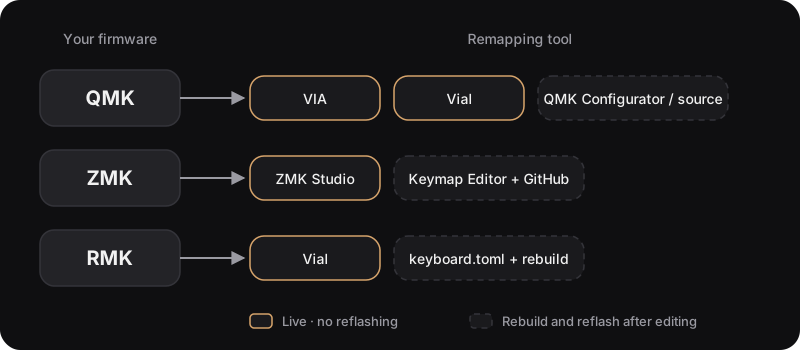
Choose your method
| Your firmware | Recommended | Alternative |
|---|---|---|
| QMK (with VIA) | Remap with VIA | QMK Configurator / source |
| QMK (Vial firmware) | Remap with Vial | — |
| ZMK | Remap with ZMK Studio | Keymap Editor + GitHub |
| RMK | Remap with Vial | Edit keyboard.toml |
Not sure which firmware you have? See Know your firmware.
Before you start
- Use a data-capable USB cable — charge-only cables won't be detected.
- Use Chrome or Edge (needed for VIA, vial.rocks and the ZMK Studio web app).
- Change one or two keys at a time and test right away.
- Back up your current keymap: VIA and Vial can export a layout file; ZMK and RMK configs have history in their repository.
Afterwards
- Live-remapped changes are stored on the keyboard and follow it to any computer.
- To go back to the stock keymap: import your backup in VIA / Vial; use "Restore Stock Settings" in ZMK Studio; use
clear_layoutin RMK. - Problems? → Troubleshooting