
All guides
Layers, keycodes and behaviors
Layers, transparent keys, tap vs hold, combos — the shared basics of every firmware, with a syntax cheat sheet.
Last updated 2026-10-15
Whatever firmware and tool you use, the same handful of ideas come up. Learn these once and every guide after this gets easier.
Physical position ≠ keycap legend
Remapping tools show physical key positions. If you set the top-left position to Tab, pressing it sends Tab — even if the keycap says Esc.
Layers
Small keyboards fit more functions on layers: the same position can do something different on each layer.
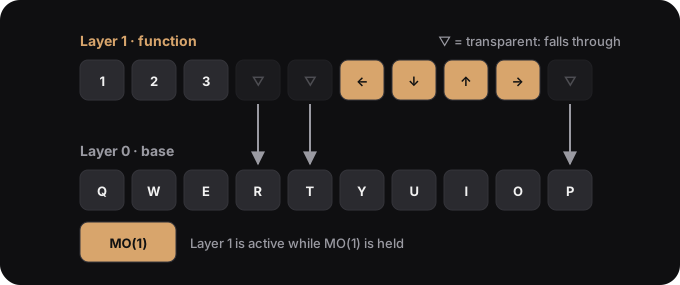
- Layer 0 is the base layer you type on.
- Holding a layer key switches temporarily to a higher layer — e.g. numbers and arrows on layer 1.
- A transparent key (▽; QMK
KC_TRNS, ZMK&trans, RMK_) isn't defined on this layer and falls through to the one below. - A no-op key (QMK
KC_NO, ZMK&none, RMK__) does nothing.
Ways to switch layers
| Behavior | Effect | QMK | ZMK | RMK |
|---|---|---|---|---|
| Momentary | Active while held | MO(1) | &mo 1 | MO(1) |
| Toggle | Press on, press off | TG(1) | &tog 1 | TG(1) |
| Go to | Switch and stay | TO(1) | &to 1 | TO(1) |
| One-shot | Applies to the next key only | OSL(1) | &sl 1 | OSL(1) |
Tap vs hold
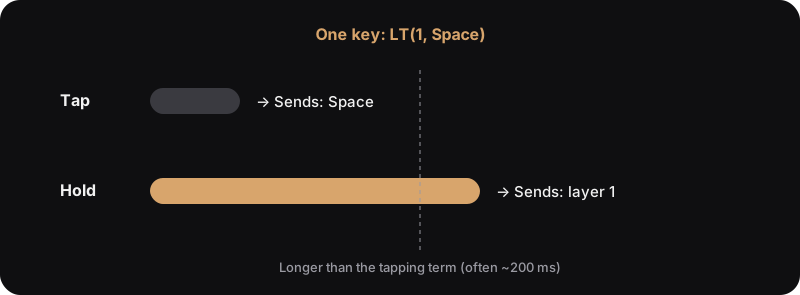
One key can do one thing when tapped and another when held. The two most common:
- Layer-tap: tap for Space, hold for layer 1.
- Mod-tap (home row mods): tap for A, hold for Shift.
| Behavior | QMK | ZMK | RMK |
|---|---|---|---|
| Tap Space / hold layer 1 | LT(1, KC_SPC) | < 1 SPACE | LT(1, Space) |
| Tap A / hold Shift | LSFT_T(KC_A) | &mt LSHIFT A | MT(A, LShift) |
Keycode cheat sheet
| Function | QMK | ZMK | RMK |
|---|---|---|---|
| A letter | KC_A | &kp A | A |
| Shifted key (Shift+1 = !) | S(KC_1) / KC_EXLM | &kp EXCL | WM(Kc1, LShift) |
| Enter bootloader | QK_BOOT | &bootloader | See your keyboard's guide |
| Bluetooth profile | — | &bt BT_SEL 0 | BT0 (User0) in Vial |
Full references: QMK keycodes · ZMK keycodes · RMK configuration